Showing posts with label Samsung. Show all posts

Samsung Galaxy Mini 2 GT-S6500 User Manual Guide

Samsung Galaxy Mini 2 GT-S6500 User Manual Guide - After the success of the Samsung Galaxy Mini (GT-S5570), Samsung re-issued Samsung Galaxy Mini 2 (GT-S6500) to continue the success of its predecessor. The presence of the successor Galaxy Mini smartphone called Galaxy Mini 2 is certainly not just a name change only.

There are other changes brought about by the Samsung Galaxy Mini 2 to remind its predecessor's performance. The same innovation applied to Samung Galaxy S 3 with its successor the Samsung Galaxy S 3 Mini is more affordable in terms of price.

Samsung Galaxy Mini 2 GT-S6500 

Whatever it is, the Samsung Galaxy Mini 2 is an upgraded version of the Samsung Galaxy Mini, to improve the performance of both machines and platforms. Here's the basic difference Samsung Galaxy Mini Samsung Galaxy Mini 2 than usual.

1. Platform
If the previous OS Samsung Galaxy Mini using OS Android 2.2 (Froyo), the Samsung Galaxy Mini 2 brings the operating system that is one level above the Froyo ie Android 2.3.6 Gingerbread OS.

2. Processor and RAM
Android OS improvement of course offset by the performance of the processor. Samsung Galaxy Mini uses a Qualcomm chipset MSM72272 with ARMv6 CPU frequency of 600 MHz is supported by 384 MB of RAM. On Samsung Galaxy Mini 2, improved processor performance to 800 MHz using the Cortex A-5 and supported by higher RAM of 512 MB.

3. Dimensions and Screen
When examined more closely, there is little difference hardly noticeable both dimensions and screen size. Dimensions of the Samsung Galaxy Mini is 110.4mm x 60.8mm x 12.1 mm and weighs 105 grams with a 3:14-inch screen size. While the Samsung Galaxy Mini 2 has a smaller size that is 109.4mm x 58.6mm x 11.6 mm and weight of 105.3 grams with a 3:27-inch wide screen with Multitouch technology.

4. Memory Storage
Not many applications that could be installed in Samsung Galaxy Mini because capacity is only 160 MB of internal memory. Therefore, the internal memory capacity of the Samsung Galaxy Mini 2 be upgraded to 4 GB even though they both offer microSD memory slot.

Download here Samsung Galaxy Mini 2 GT-S6500 User Manual Guide
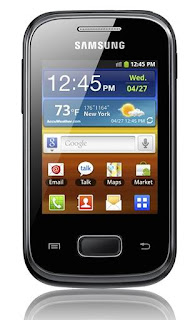

Samsung Galaxy Pocket GT-S5300 User Manual Guide

Samsung Galaxy Pocket GT-S5300 User Manual Guide - Samsung Galaxy Pocket GT-S5300 offers simplicity of design with uncompromising standards for quality and comfort. Its sleek and streamlined body is comfortable to hold in the hand, the compact size making it conveniently fits into any pocket and easy to carry wherever you go. Samsung Galaxy Pocket GT-S5300 also featuring a 2.8" screen to display fine image details with clarity, giving you the perfect visual enjoyment.

Here we offer the free transfer link for the Samsung Galaxy Pocket S5300 user manual from manufacturer web site (samsung.com). for brand new user of Samsung Galaxy Pocket S5300 smartphone, you'll want this user guide to boost your experiences whereas victimization this smartphone. In some countries, the acquisition or retail package doesn't embrace the user manual, therefore you've got to transfer manually from the Samsung official web site. Please use our transfer link below to urge the user manual of Samsung Galaxy Pocket S5300 series. within this user manual, you'll notice elaborate info concerning the way to operate your Samsung Galaxy Pocket, phone options, troubleshooting tips, error messages, etc. Use the link we offer below to begin downloading the Samsung Galaxy Pocket user manual. Then you may be redirected to our transfer page wherever you'll get the direct access to the PDF file. reserve it to your laptop and open along with your favorite PDF reader.
Samsung Galaxy Pocket GT-S5300
Google Images
The Samsung Galaxy Pocket manual or user guide now on the market for download in PDF format. The Samsung Galaxy Pocket manual is ebook tutorial that contain information and directions particularly the way to operate this phone properly and safely like the way to using applications, connecting setting, phone setting guide, learn phone basic operations, and more. The user manual has 124 pages with file size of five.15 MB and support in West Germanic. in the Samsung Galaxy Pocket GT-S5300 User Guide, you'll find important information like concerning take away, phone layout, keys, tutorial insert the SIM card and battery, insert a memory card, using the touch sccreen, lock and unlock guide, the way to using applications, using google mail, talk, messenger, Google+, social hub, camera, gallery, listening music and FM radio, voice recorder, memo, etc.

Before using this Samsung Galaxy Pocket smartphone, you have to check the accessories supplied, such as Mobile device, battery and quick start guide.

Table contents of Samsung Galaxy Pocket GT-S5300 User Manual :
  • Connectivity
  • Tools
  • Settings
  • Troubleshooting
  • Safety information
  • Index
  • Using This Manual
  • Assembling
  • Getting started
  • Communication
  • Entertainment
  • Personal information
  • Web
Learn more Samsung Galaxy Pocket GT-S5300 with download Samsung Galaxy Pocket GT-S5300 user manual in below and fun life with your Samsung Galaxy Pocket GT-S5300.


Samsung Galaxy Tab 10.1 User Manual Guide

Samsung Galaxy Tab 10.1 User Manual Guide - That is why you’ll in no way establish a SIM Tag Slot on this Galaxy Tab 10.1 (which has a GT P7510 string name). By this, in the User Instruction booklet User Direct of this Tablet, you wouldn’t notice some tutorial that would direct you how to supplement the SIM Tag, so do how to Installing the peripheral memory tag. Yup, this Galaxy Tab 10.1 GT P7510 isn’t ropes microSD Tag (do not had Tag Slot). 
Samsung Galaxy Tab 10.1
Google Images
This means that in attendance is no instructions instruction booklet how you tin put in and supplement the microSD tag to the body of Galaxy Tab Tablet, Download Samsung Galaxy Tab 10.1 Manual User Guide PDF .

Download Samsung Galaxy Tab 10.1 Manual User Guide PDF (If you looking for Samsung Galaxy Tab 10.1 4G LTE User Direct for Verizon, just go here) Although Samsung do had a intend on releasing the Samsung Galaxy Tab 10.1 which ropes Wi-Fi plus 3G Data Networks (bundling with Carrier), right now, in United State Us, in attendance is only Samsung Galaxy Tab 10.1 Wi-Fi Only with no GSM CDMA Equipment (3G or 4G) is existing. This in addition means that this Galaxy Tab 10.1 (Tablet) is not ropes for Data Networks vote communication and in addition for messaging via SMS or MMS.


Samsung Galaxy S3 User Manual Guide

Samsung Galaxy S3 User Manual Guide - Samsung I9300 Galaxy S3 is the first Quad-core Android smartphone, which is annouced in May, 2012. Galaxy S III runs on Android 4.0, which hich has been heavily modified by the latest TouchWiz UI from Samsung.
Samsung Galaxy S3
Google Images
Samsung was incredibly secretive about the Galaxy S3 before its launch, even going to the extent of sending out disguised prototypes to design leaks. On the other hand, since the official announcement of its latest flagship device on May 3, the Korean company has been equally open and aggressive in the promotion of the device, with more than regular updates on the expected availability schedule, and continuous release of press images of the various accessories to accompany the Galaxy S3.

Samsung Galaxy S3 Manual application can open Galaxy S3 PDF user manual directly, don't need to install PDF reader. While you don't know how to operate some functions, open this application to find the detailed procedures. 


Samsung Gusto 2 User Manual Guide

Samsung Gusto 2 User Manual Guide - The important difference between Samsung Gusto and the Gusto 2 lies in the resolution of camera on Gusto that uses VGA CMOS and the Gusto 2 has a little better to 1.3 megapixels. The models are not much different. Meanwhile, multimedia features, messaging and browser, including Bluetooth connectivity are also available on the old Samsung Gusto. Here is a picture of both.
Samsung Gusto 2
Google Images
Samsung Gusto 2 is the successor of the first Samsung Gusto SCH-U360 on Verizon Wireless. As its predecessor, the Gusto 2 works and supports the CDMA1x network at dualband cdma 800 and 1900MHz and brings basic features on a cell phone aimed for basic use such as calling and short messaging (SMS). 

The Samsung Gusto 2 equipped with a 2-inch color display, a 1.3 MP camera, 64 MB of internal storage without an external microSD slot option and a 1000mAh battery that claimed to survive up to 7-8 hours in talk time mode, and up to 14-15 days stand-by and a Large, tactile keypad with hot keys for quick messaging.

Samsung Gusto 2 Specsificasi :
  • Model number: SCH-U365HAAVZW
  • Network: CDMA
  • Band: CDMA 800 1900 MHz
  • Data: CDMA20001x
  • Model: Flip, Clamshell
  • Display: TFT 2-inch, 262.144 color 128x160px
  • External display: Monochome
  • Camera: 1.3 MP
  • Memory: 64 MB
  • MicroSD slot: N/A
  • GPS: Yes S-GPS
  • Connectivity: MicroUSB (charging), bluetooth (HFP, HSP, OPP, PBAP, SPP)
  • Music Files support: AAC, AAC+, eAAC+, CMX4.4.6,EVRC, IMelody,QCELP, WAV
  • Messaging: SMS, MMS, Email, Facebook, Twitter
  • Browser: WAP, HTML
  • Battery: 1000mAh
  • Dimensions: 3.82 x 1.93 x 0.75 (97 x 49 x 19 mm)
  • Weight: 3.90 oz (110 g)
  • Other specs: polyphonic ringtones, vibrations, pic ID, speakerphone, alarm, calculator, predictive text input, T9, XT9, Voice dialing, Voice commands, TTY/TDD, Dynamic Voice Enhancement with Noise Cancellation, Picture Messaging for Instant Sharing.


Samsung Ace Duos User Manual Guide

Samsung Ace Duos User Manual Guide -Samsung has arise up with some exuberant trendy phones in trendy period and Accumulation Ace Duoas 1589 is that the newest of them. This candy shaped symptom phone options store bill slots to require CDMA and GSM SIM game. The sound runs on mechanical man v2.3 (Gingerbread) package on associate 800 megacycle processor to administer you a eager soul receive. it's a saturated and shrewd 3.5 inch TFT covering that backs HVGA document of 320 x 480 pixels.
Samsung Ace Duos
Google Images
It additionally possesses the TouchWiz thusul programme that produces the direction so marmoreal. Figure and appears The Samsung Ace Duos is undischarged with a three.15 megapixel camera to assist the soul to catch the clever moments of his/her vivification. Geo tagging, automobile cogitate and ikon application area unit the choices gettable with this camera.

The sound additionally has utilization options very much like MySpace, Gmail, Twirp, and Google Reveal. This emblem is steam-powered by 1650 mAh Li-Ion bombardment that super its teach quantify up to 7 hours. The person will modify the memory of the device up to thirty two GB victimization microSD bill. GPRS,Strip and Wi-Fi area unit the net platforms that wage a good feeding have for you. A-GPS proof is additionally there within the sound, with Google Maps. For fallen record uploading and file.

Table Of Content For Samsung Ace Duos User Manual Guide :
  • Communication
  • Calling
  • Messaging
  • Google Mail
  • Entertainment
  • Camera
  • Gallery
  • Music
  • FM Radio
  • Personal information
  • Contacts
  • Calendar
  • Web
  • Internet
  • Connectivity
  • Tools
  • Settings
  • Troubleshooting
  • Safety precautions
  • Using this manual
  • Assembling
  • Unpack
  • Install the SIM or UIM card and battery
  • Charge the battery
  • Insert a memory card
  • Getting started
  • Turn your device on and off
  • Get to know your device
  • Use the touch screen
  • Lock or unlock the touch screen and keys
  • Access applications
  • Download applications from Android Market


Samsung DV300F User Manual Guide

Samsung DV300F User Manual Guide - The Samsung DV300F exercise / users orient comes in PDF file info with six.14 MB in scenario (168 pages). It's purchasable online and we will transfer this recitation at samsung.com (the authorised Samsung website).
Samsung DV300F
Google Images
We have a tendency to hoard all the Samsung DV300F collection from varied sources and additionally drill volume to draw you all content for operative the Samsung DV300F digital camera aright. you'll transfer this Samsung DV300F recitation and record it at your laptop or notebook and see it victimisation Brick jock Reverend software system.

The Samsung DV300F drill provides arrant indicator aggregation and instruction some how to use the Samsung DV300F camera properly. Here we have a tendency to ply you the array of list for Samsung DV300F drill to steer you the Samsung DV300F individual orient at glint.

Table contents of Samsung DV300F user manual :
  • Shooting options
  • Playback/Editing
  • Wireless network
  • (DV300F/DV305F only)
  • Settings
  • Appendixes
  • Index
  • Basic troubleshooting
  • Quick reference
  • Contents
  • Basic functions
  • Extended functions


Samsung Metro E2252 User Manual Guide

Samsung Metro E2252 User Manual Guide - Samsung Metro E2252 exercise or somebody orient has been posted by Samsung natural philosophy in its online position. The Samsung Metro E2252 drill is holographic in PDF document. Samsung Metro E2252 user orient is provided in two pages of PDF line. the scale of this file is one.43 MB.
Samsung Metro E2252
Google Images
If you make love purchased the Samsung Metro E2252 peregrine phone, then you staleness own this Samsung Subway E2252 drill and show it. you'll download this Samsung Metro E2252 person reference flat to your screen laptop or notebook, and show it by victimisation PDF printer software, similar Adobe athlete Reverend and Foxit consumer. 

The Samsung Metro E2252 human apply provides accomplished substance message and message on how to use the Samsung Subway E2252 mechanized phone correctly. Here we provides you table of spring. to examine pol near this apply, you person to download the PDF file we've provided below this article.

Table contents of Samsung Metro E2252 user manual :
  • Add a new contact
  • Send and view messages
  • Activate and send an SOS message
  • Make fake calls
  • Activate the torch light
  • Use the camera
  • Safety precautions
  • Phone layout
  • Manage your SIM cards
  • Make a call
  • Call a recently dialled number
  • Adjust the volume
  • Use the smart home screen
  • Enter text